> ## Documentation Index
> Fetch the complete documentation index at: https://cortex-foundation-add13747-droid-2a5c5e50-docs-ferndesk-pro.mintlify.site/llms.txt
> Use this file to discover all available pages before exploring further.
# Cortex Bot
> A bot with its own computer. Browses, clicks, and works on a desktop you can watch; parks consequential steps behind approvals; runs routines on schedule.
Cortex Bot is an always-on teammate. Where Chat answers and Code changes a repository, a bot **does things on a desktop**: opens a browser, clicks through a flow, reads files, runs a shell command, and reports back in a few short messages. You can watch its screen while it works, and it asks before it does anything consequential.
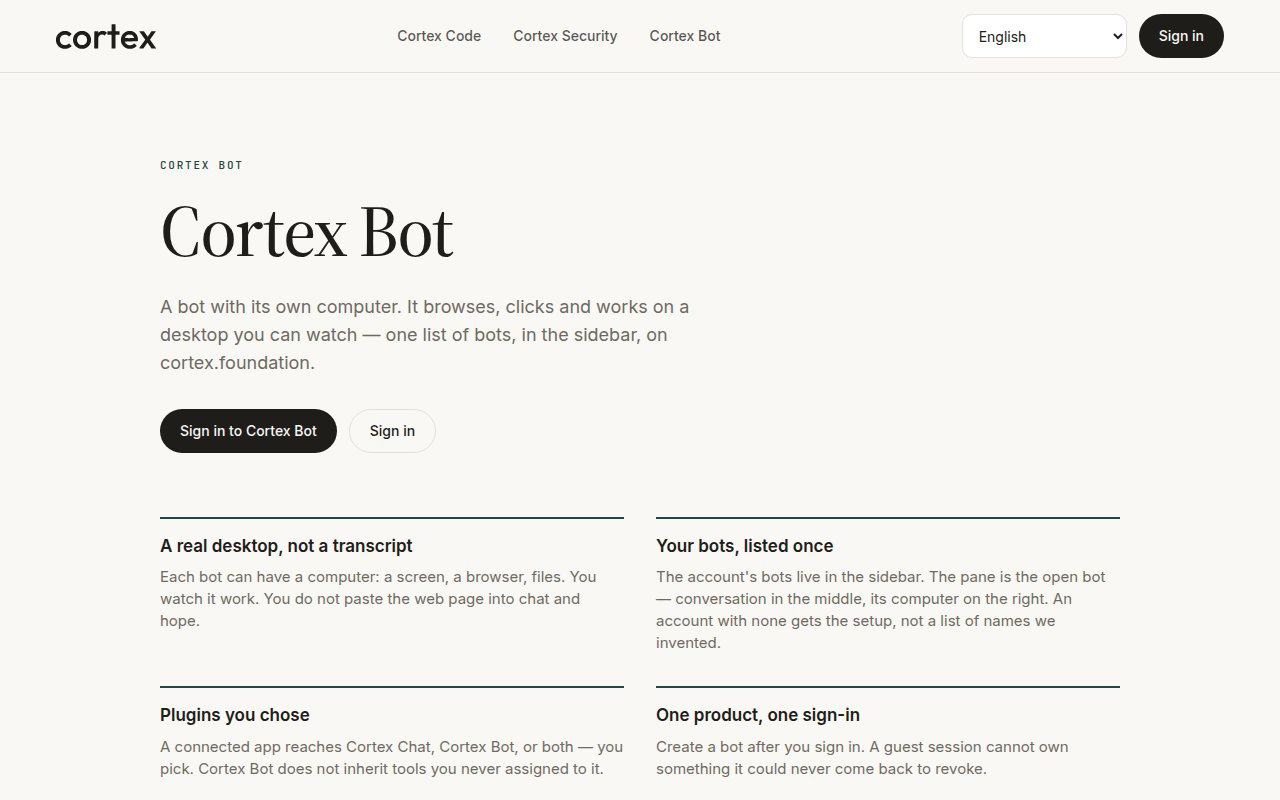
Bots belong to a signed-in account. Your bots are listed once, in the sidebar; the pane is the open bot — conversation in the middle, its computer on the right.
 ## What a bot is
| Commitment | What it means |
| ------------------------------------ | -------------------------------------------------------------------------------------------------------------------- |
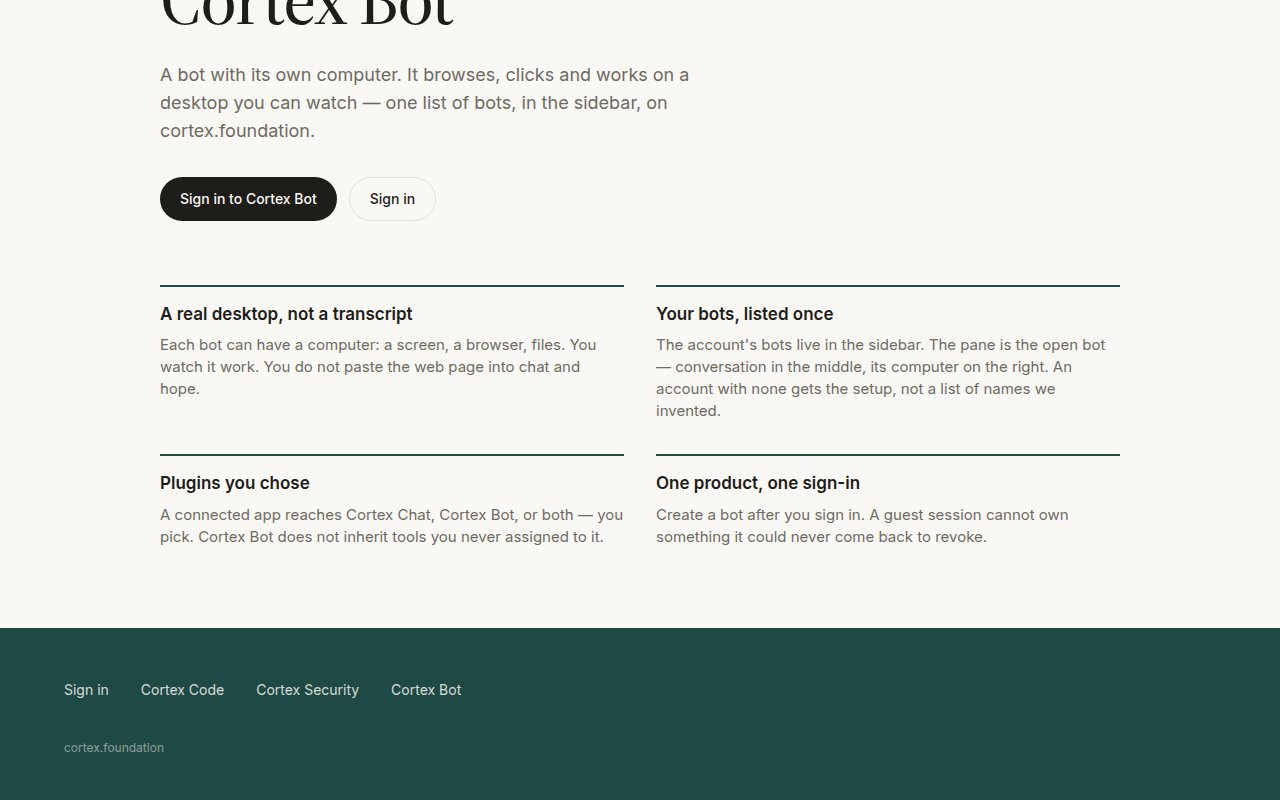
| **A real desktop, not a transcript** | Each bot can have a computer: a screen, a browser, files. You watch it work instead of pasting a web page into chat. |
| **Your bots listed once** | One list in the sidebar, in the web app and the [Bot desktop app](/bot/desktop). |
| **Plugins you chose** | A bot never inherits a connection you did not assign to it. |
| **One product, one sign-in** | The same account as Chat and Code. |
## Start here
Sign in, create a bot, open its computer, give it a first task.
A live desktop on a Cloud guest — screen, browser, files.
A desktop app built around agents, routines, and channels — no Chat or Code sidebar.
## Create your first bot
Bots are member objects. A guest sees the public product page at `/bot`.
An account with no bots yet gets the **setup form**, not an empty list. Give the bot a name and, if it helps, a description of the job.
On the Computer rail choose **Open desktop**. The Cloud guest starts — the rail reads **Connecting** while it does — and the live desktop appears: screen, browser, files.
Describe the job in the conversation.
```text theme={null}
Open our status page, check whether any component is degraded, and tell me what you find.
```
The bot works on its desktop while you watch. It reports back in short messages rather than a transcript of every click.
When the bot reaches a consequential action — changing something in a connected app, or a dangerous computer step — it parks and shows **Allow / Deny / Always**. Nothing runs until you choose. See [Approvals](/bot/approvals).
Add a **routine** for work you want repeated. Routines fire in your local weekday hours. See [Routines](/bot/routines).
Choose **Sleep** on the Computer rail when you are done. The next task wakes the guest before the bot is prompted.
## Core guides
A live desktop on a Cloud guest, not a screenshot slideshow. Open desktop, Sleep, and the three hosts.
The parent catalog — shell, computer use, browser, web, memory, skills, messaging, nested tasks.
Allow / Deny / Always. Nothing consequential runs until you choose.
Scheduled work on a bot you own, on your local weekday hours.
First-party instruction bundles a bot can follow.
A connection reaches Chat, Bot, or both — you pick, under Customize → Connectors.
## Give the bot tools
Under **Customize → Connectors**, connect an app and make it available to **Cortex Bot** (or to both Chat and Bot). A bot never inherits a connection you did not assign. See [Tools and connectors](/chat/tools).
## Good first tasks
| Task | Why it suits a bot |
| -------------------------------------------------- | ---------------------------------------- |
| Check a dashboard and summarise what changed | Browsing plus a short report |
| Fill a recurring form from a document you attach | Desktop work with a clear stopping point |
| Watch a page and notify you when something appears | A routine plus `notify` |
| Pull a report from a connected app every Monday | A routine with an approved connection |
## Advanced
* [How Bot works](/bot/how-it-works) — user-visible bubbles only, no round counter, waking a hibernated guest.
* [Bot troubleshooting](/bot/troubleshooting) — Connecting versus Stream Unavailable, parked steps, the setup form.
* [Security and privacy](/security/overview) — what Cortex stores and where a bot's computer runs.
## Next
1. [Bot quickstart](/bot/quickstart) — create a bot and give it a first task.
2. [Computer](/bot/computer) — open the desktop, and choose a host.
3. [Approvals](/bot/approvals) — decide what a bot may do without asking.
4. [Routines](/bot/routines) — put repeated work on a schedule.
## What a bot is
| Commitment | What it means |
| ------------------------------------ | -------------------------------------------------------------------------------------------------------------------- |
| **A real desktop, not a transcript** | Each bot can have a computer: a screen, a browser, files. You watch it work instead of pasting a web page into chat. |
| **Your bots listed once** | One list in the sidebar, in the web app and the [Bot desktop app](/bot/desktop). |
| **Plugins you chose** | A bot never inherits a connection you did not assign to it. |
| **One product, one sign-in** | The same account as Chat and Code. |
## Start here
Sign in, create a bot, open its computer, give it a first task.
A live desktop on a Cloud guest — screen, browser, files.
A desktop app built around agents, routines, and channels — no Chat or Code sidebar.
## Create your first bot
Bots are member objects. A guest sees the public product page at `/bot`.
An account with no bots yet gets the **setup form**, not an empty list. Give the bot a name and, if it helps, a description of the job.
On the Computer rail choose **Open desktop**. The Cloud guest starts — the rail reads **Connecting** while it does — and the live desktop appears: screen, browser, files.
Describe the job in the conversation.
```text theme={null}
Open our status page, check whether any component is degraded, and tell me what you find.
```
The bot works on its desktop while you watch. It reports back in short messages rather than a transcript of every click.
When the bot reaches a consequential action — changing something in a connected app, or a dangerous computer step — it parks and shows **Allow / Deny / Always**. Nothing runs until you choose. See [Approvals](/bot/approvals).
Add a **routine** for work you want repeated. Routines fire in your local weekday hours. See [Routines](/bot/routines).
Choose **Sleep** on the Computer rail when you are done. The next task wakes the guest before the bot is prompted.
## Core guides
A live desktop on a Cloud guest, not a screenshot slideshow. Open desktop, Sleep, and the three hosts.
The parent catalog — shell, computer use, browser, web, memory, skills, messaging, nested tasks.
Allow / Deny / Always. Nothing consequential runs until you choose.
Scheduled work on a bot you own, on your local weekday hours.
First-party instruction bundles a bot can follow.
A connection reaches Chat, Bot, or both — you pick, under Customize → Connectors.
## Give the bot tools
Under **Customize → Connectors**, connect an app and make it available to **Cortex Bot** (or to both Chat and Bot). A bot never inherits a connection you did not assign. See [Tools and connectors](/chat/tools).
## Good first tasks
| Task | Why it suits a bot |
| -------------------------------------------------- | ---------------------------------------- |
| Check a dashboard and summarise what changed | Browsing plus a short report |
| Fill a recurring form from a document you attach | Desktop work with a clear stopping point |
| Watch a page and notify you when something appears | A routine plus `notify` |
| Pull a report from a connected app every Monday | A routine with an approved connection |
## Advanced
* [How Bot works](/bot/how-it-works) — user-visible bubbles only, no round counter, waking a hibernated guest.
* [Bot troubleshooting](/bot/troubleshooting) — Connecting versus Stream Unavailable, parked steps, the setup form.
* [Security and privacy](/security/overview) — what Cortex stores and where a bot's computer runs.
## Next
1. [Bot quickstart](/bot/quickstart) — create a bot and give it a first task.
2. [Computer](/bot/computer) — open the desktop, and choose a host.
3. [Approvals](/bot/approvals) — decide what a bot may do without asking.
4. [Routines](/bot/routines) — put repeated work on a schedule.