> ## Documentation Index
> Fetch the complete documentation index at: https://cortex-foundation-add13747-droid-2a5c5e50-docs-ferndesk-pro.mintlify.site/llms.txt
> Use this file to discover all available pages before exploring further.
# Chat canvases
> A document that sits beside the conversation. Draft it yourself or ask Cortex to — and keep editing after the chat moves on.
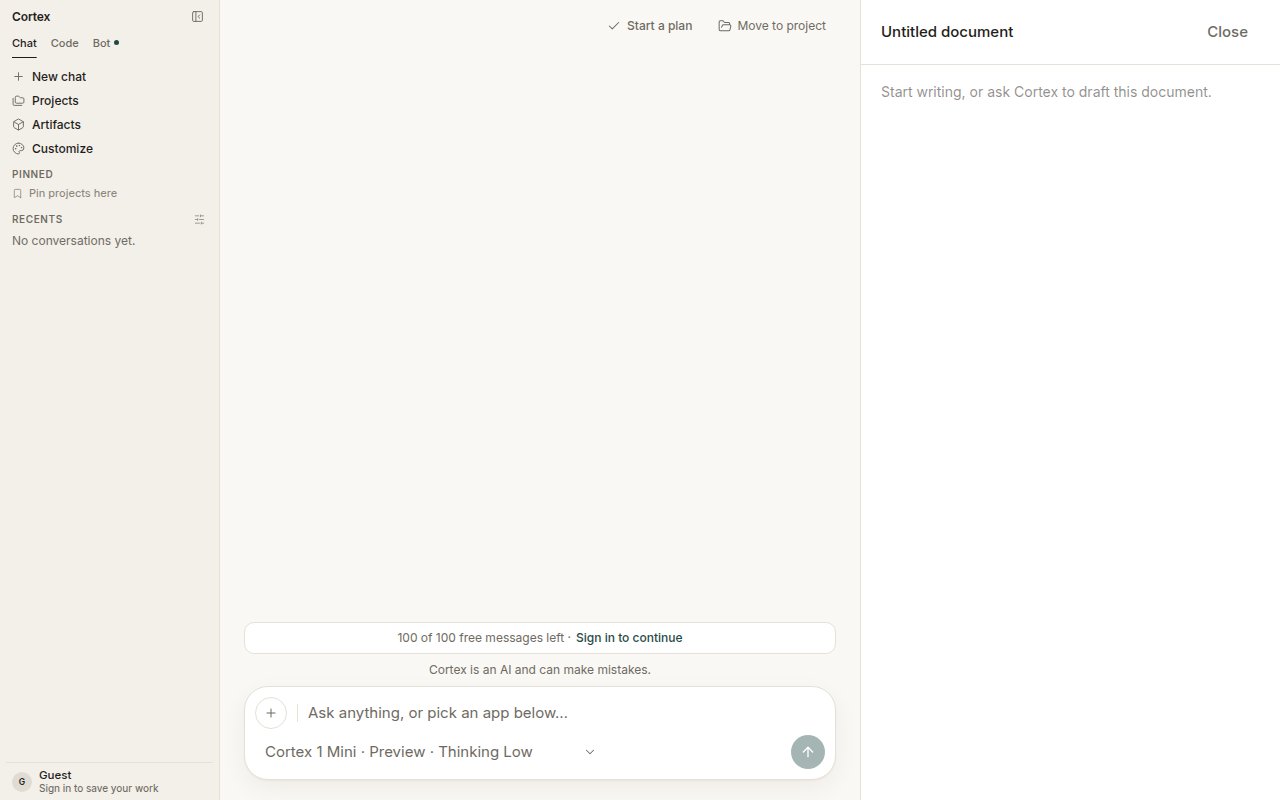
A Chat canvas is a document panel beside a conversation. Cortex can draft it, you can edit it, and it keeps your edits when you close it. It is the right place for a launch announcement, a spec, or anything you want to shape over several turns instead of scrolling back through replies.
 ## Open a canvas
* Choose the **Docs** card on Chat home — *Drafts that structure themselves*. It opens a new chat with an **Untitled document** beside it.
* Or ask in any thread: *Draft this as a document I can edit.*
## Work in a canvas
1. Ask Cortex to draft or revise — *tighten the intro*, *add a section on pricing*.
2. Edit directly in the panel. The conversation and the document stay in step.
3. **Close** the panel when you are done; your edits are kept with the conversation.
## What writes to it
Canvas tools are part of the tool set a Chat turn can receive, alongside the document readers. A turn reaches them the same way it reaches any other tool — the model asks, Chat runs it. See [How Chat works](/chat/how-it-works).
Two of those tools are for Design boards rather than documents: `design_write` and `design_read`. Chat can host a **Design** canvas through them, and that object opens in the Design desktop app. See [Design](/design).
## Canvas, plan, or Library?
| You want | Use |
| ------------------------------------------- | ----------------------------------- |
| A document you shape over several turns | A **canvas** — this page |
| A task list you tick off | A [plan](/chat/plans) |
| A file you attach or the assistant produced | [Library](/chat/library) |
| A board of frames and notes | A [Design canvas](/design/canvases) |
## What it is not
| Object | What it is |
| --------------------------------- | --------------------------------------------------------------------------------------- |
| **Chat canvas** | A document beside one conversation |
| [Plan](/chat/plans) | A task list linked to a conversation |
| Code file | A file inside a Code session's Cloud guest |
| [Design canvas](/design/canvases) | A board of frames and notes, hosted from Chat or Code, edited in the Design desktop app |
There is no `/design` mode in the web app. Chat can host a **Design** canvas — the object is created from the conversation — but the working UI for it is the Design desktop app. See [Design](/design).
## Related
* [Projects](/chat/projects) — keep the chat and its document with the rest of the work.
* [Library](/chat/library) — attachments the draft can draw on.
* [Design canvases](/design/canvases) — the other object called a canvas.
## Open a canvas
* Choose the **Docs** card on Chat home — *Drafts that structure themselves*. It opens a new chat with an **Untitled document** beside it.
* Or ask in any thread: *Draft this as a document I can edit.*
## Work in a canvas
1. Ask Cortex to draft or revise — *tighten the intro*, *add a section on pricing*.
2. Edit directly in the panel. The conversation and the document stay in step.
3. **Close** the panel when you are done; your edits are kept with the conversation.
## What writes to it
Canvas tools are part of the tool set a Chat turn can receive, alongside the document readers. A turn reaches them the same way it reaches any other tool — the model asks, Chat runs it. See [How Chat works](/chat/how-it-works).
Two of those tools are for Design boards rather than documents: `design_write` and `design_read`. Chat can host a **Design** canvas through them, and that object opens in the Design desktop app. See [Design](/design).
## Canvas, plan, or Library?
| You want | Use |
| ------------------------------------------- | ----------------------------------- |
| A document you shape over several turns | A **canvas** — this page |
| A task list you tick off | A [plan](/chat/plans) |
| A file you attach or the assistant produced | [Library](/chat/library) |
| A board of frames and notes | A [Design canvas](/design/canvases) |
## What it is not
| Object | What it is |
| --------------------------------- | --------------------------------------------------------------------------------------- |
| **Chat canvas** | A document beside one conversation |
| [Plan](/chat/plans) | A task list linked to a conversation |
| Code file | A file inside a Code session's Cloud guest |
| [Design canvas](/design/canvases) | A board of frames and notes, hosted from Chat or Code, edited in the Design desktop app |
There is no `/design` mode in the web app. Chat can host a **Design** canvas — the object is created from the conversation — but the working UI for it is the Design desktop app. See [Design](/design).
## Related
* [Projects](/chat/projects) — keep the chat and its document with the rest of the work.
* [Library](/chat/library) — attachments the draft can draw on.
* [Design canvases](/design/canvases) — the other object called a canvas.